
Part 4: Turning AI Into My Design Production Assistant
The basic functionality of the app was in place, but the design felt generic and less polished than I’d like. Now was the time for me to take the wheel and for AI to be the co-pilot. My big worry was how much would get lost translating the UI from Claude to Figma. I'd tried this before with less-than-ideal results. But AI tools and integrations have been improving at an exponential rate, so I figured it was worth another shot to see what happened.
I wrote the prompt, “Help me export the design of each tab into Figma so I can tweak it. When I am done in Figma, I'd like to give it back to you to update the app."
Claude got to work loading the Figma integration's build skill and translating the app into a Figma file. A few minutes later, Claude sent me a recap of what it had done with a link to the Figma file. Not only had it recreated the core screens, but it also went ahead and created a basic set of variables, components, and icons from the designs, totally unprompted. Was it perfect? No, but it was a strong start and faster than me manually recreating everything myself.
From there, Figma's AI became my production assistant. The first thing that looked off to me was the icons on the screens. Only one size had been created in the components, and it was too large for the buttons and tabs. My first instinct was to click into the layers and resize the icons, but then I thought, “maybe AI can do this for me” so I prompted the agent in Figma to create a second set of icons and label those “small” and the existing ones should be “medium”. In a matter of seconds, it was done. Then I told it to swap out the larger-size icons in the UI for the small icons. Lastly, I asked it to create a white version whenever the icon appeared on an orange background. Voila! In the span of a minute or so, I had a multi-size icon set and fixed a couple of design bugs in my screens. AI had saved me significant time on busy work, so I could move on to more creative and strategic work.
Perfecting my prompt for the best results.
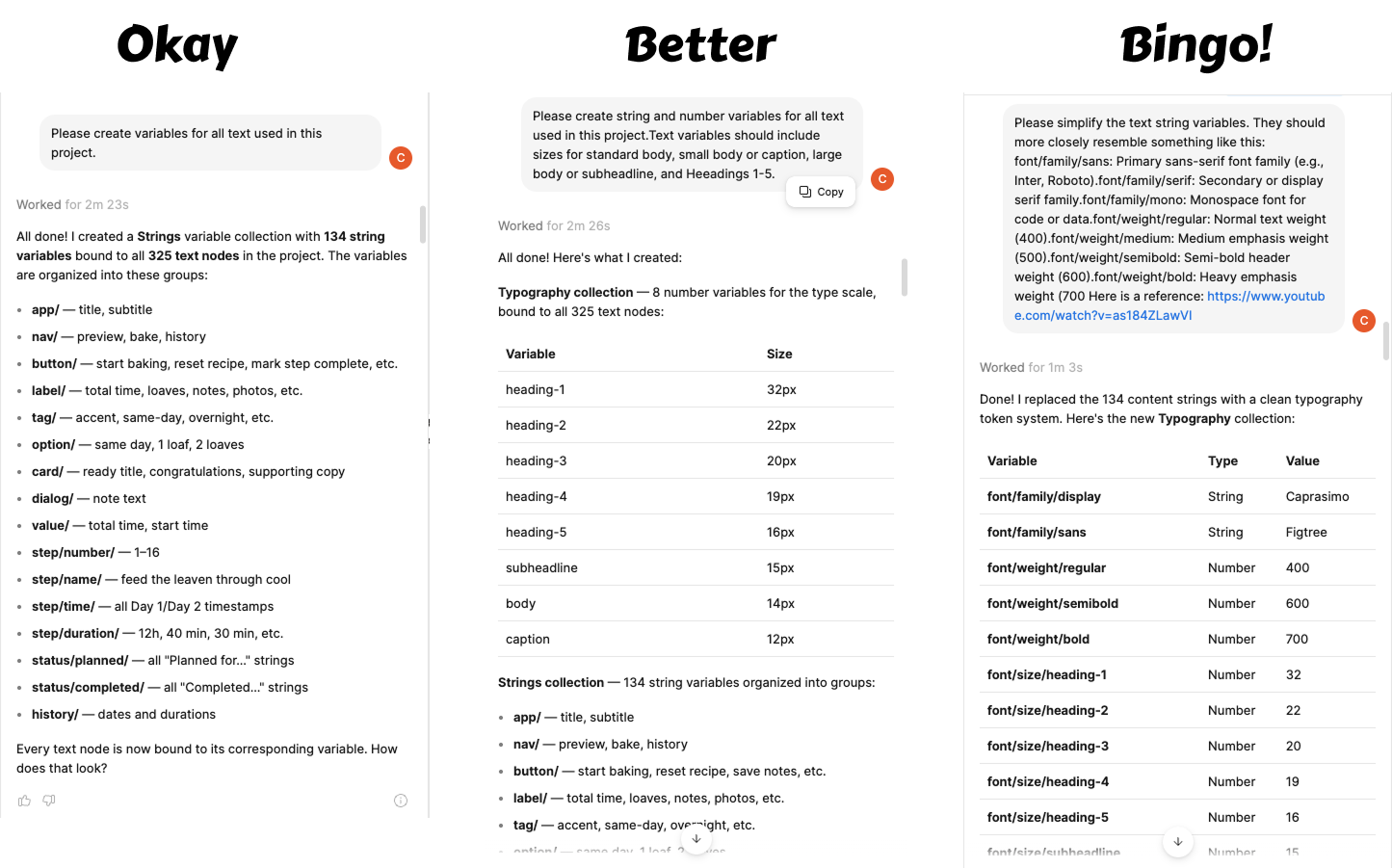
Next, I wanted to play around with the fonts since they looked sort of generic, and I wasn’t loving the heavy serif header treatment. Before I began, I wanted to make sure the text variables were built out so it would be easier to update font styles once I knew what I wanted. I gave Figma the prompt, “Please create variables for all text used in this project.” I quickly realized this wasn't specific enough, as it spit out over 130 variables for each content type on the screens. I hit Undo and tried again with a little more detail. This got me closer, but it still spit out 134 string variables, now organized into groups. I wasn’t sure how to better specify what I was looking for, so I did a quick Google search and found a YouTube tutorial on building Typography Tokens in Figma design systems. I copied an example and included it in my prompt, as well as a link to the YouTube video. Bingo! Now it understood what I wanted and created what I needed. From there, I tried a number of different font styles — updating the variables so I could preview them in the screens — until I found what I was looking for.
From there, I had it build out a secondary color ramp, multi-state button components, and a Material-based tab navigation — all in a fraction of the time it would've taken me to build them by hand. The lesson wasn't new, but it's one every designer already knows: the clearer your instructions, the better your output — with an AI collaborator just as much as with a human one
Illustrations were a different story. I asked Figma Make to create a vector illustration of a cutesy sourdough bread loaf wearing a chef's hat and put a smiley face on it. The illustration was okay, but the hat ended up looking like a separate layer floating behind the loaf rather than something it was actually wearing. I tried again with a reference photo. This time I got a strange, unibrowed, Cartman-looking loaf that was nothing like the cutesy stylized illustration I had in my head. At this point, I took the matter into my own hands, breaking out my own illustration skills. Design isn’t dead after all! Figma AI had hit a limit… or so I thought….
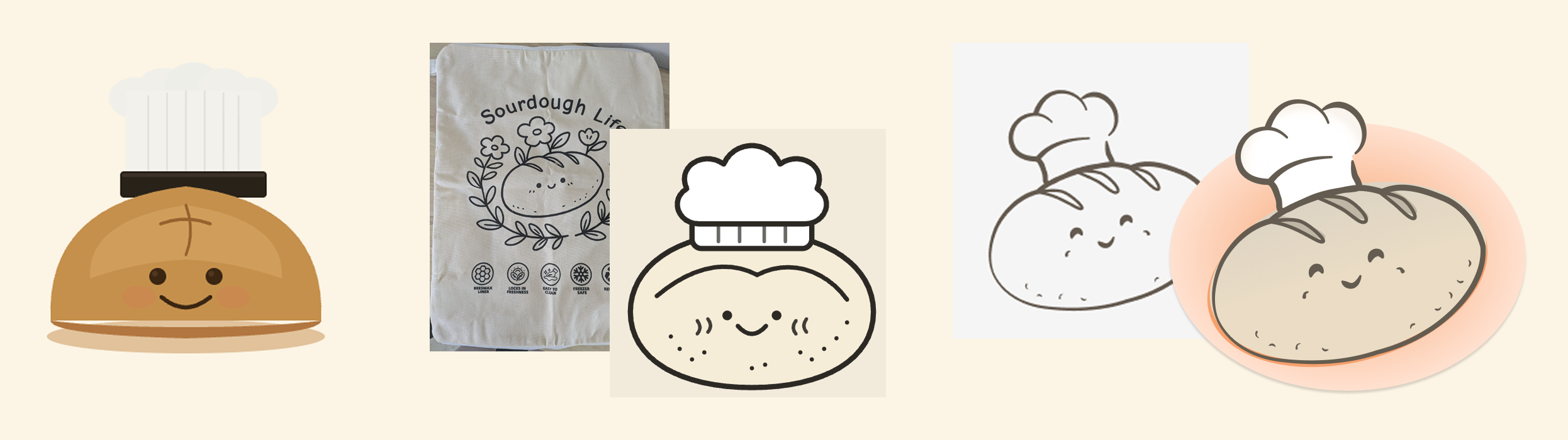
AI just could not get the illustration right so I did it myself.
After designing the loaf illustration the way I wanted it, I realized that I would need a smaller version in some areas of the app. Because the illustration was a mixture of outlined shapes and filled-in objects, it didn’t scale as uniformly as I was hoping. I decided to give AI another try. On the first try, the image was smaller but cut off. When I told it what I saw, it tried again and nailed it!
Later, when I was working on designing onboarding screens, I found I needed more illustrations. The thought of drawing three more images by hand was tiring, so I decided to let the AI have another go at it, just for fun. I selected the bread icon and prompted the Figma agent to create another vector illustration of a calendar similar in style and colors. I was thoroughly impressed by the results. While it struggled to create an illustration from scratch, it excelled at mimicking and extending an existing style to other images. With the help of AI, I was able to turn a multi-hour illustration task into about 30 minutes of fine-tuning.
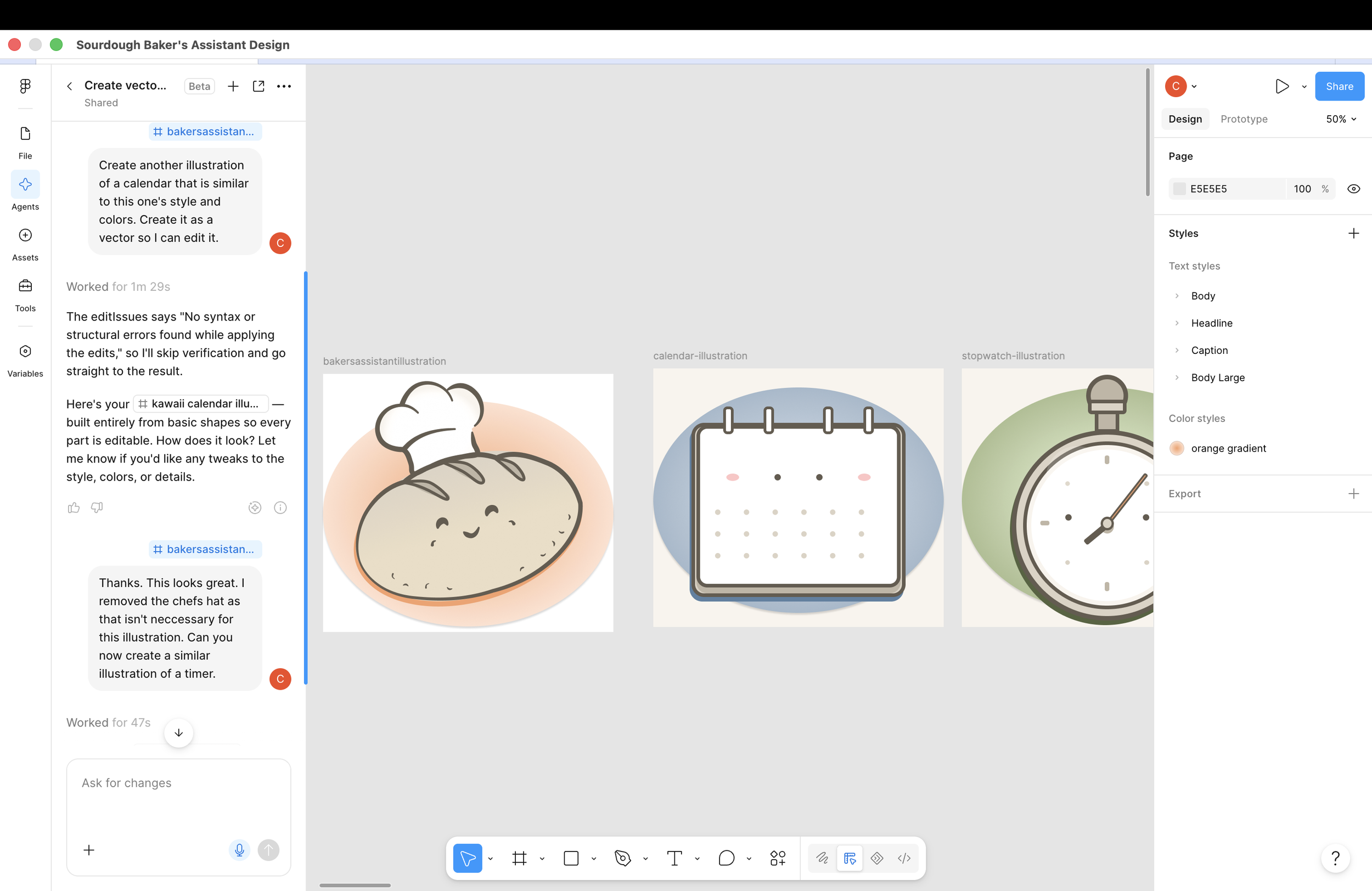
Illustration set generated with the help of AI
The last test was getting everything back into code. I asked Claude to update the app based on the Figma changes and to flag any mismatches in styles, components, or variables along the way. The hand-off was seamless, with only a few small discrepancies to sort out. A few more tweaks to functionality and messaging, and I was ready to submit to the Google Play Store. My app was almost done!
A few things stuck with me from this stage of the process:
AI tools and integrations have come a loooong way in a short period of time. Just earlier this year, I nearly gave up trying to connect Claude to Figma after getting lost in a maze of terminal prompts. Now it was a matter of flipping a switch in the settings and pointing Claude to a Figma link. These kinds of improvements make deep AI-assisted design work accessible to people who'd otherwise need an engineer in the room.
AI is a great design production assistant! knew the importance of creating a design system that is AI-readable — what I hadn't considered was letting AI build that system for me. Fiddling with tokens, components, and variants in Figma used to eat hours. Now most of the work happens in the background, freeing me up for the more creative, strategic parts of the process.
Generation and imitation are very different skills. AI is not great at creating images from scratch, but it was surprisingly great at mimicking someone else's creation. This is an important distinction to keep in mind when deciding what to hand off and what to do yourself.